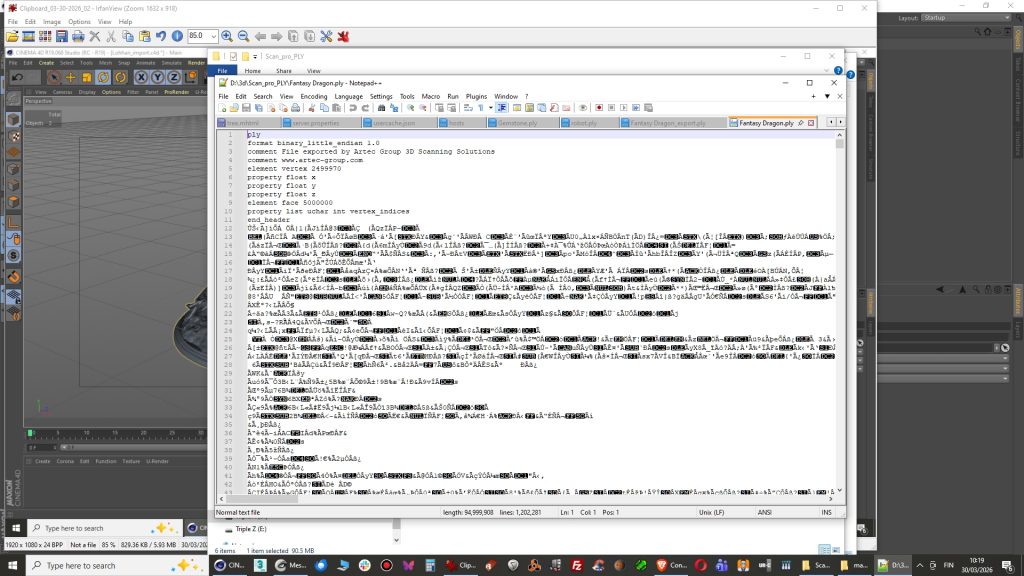
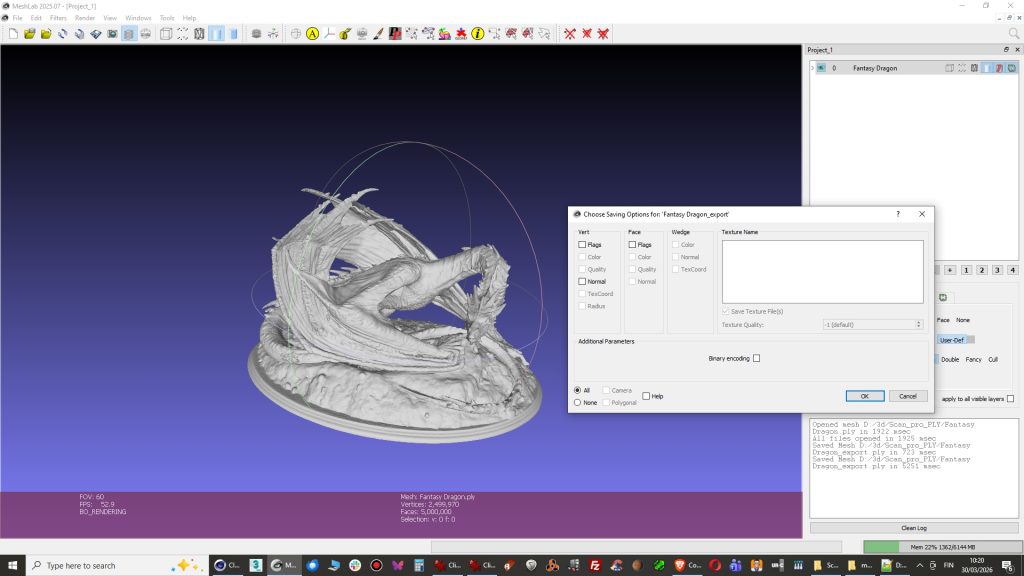
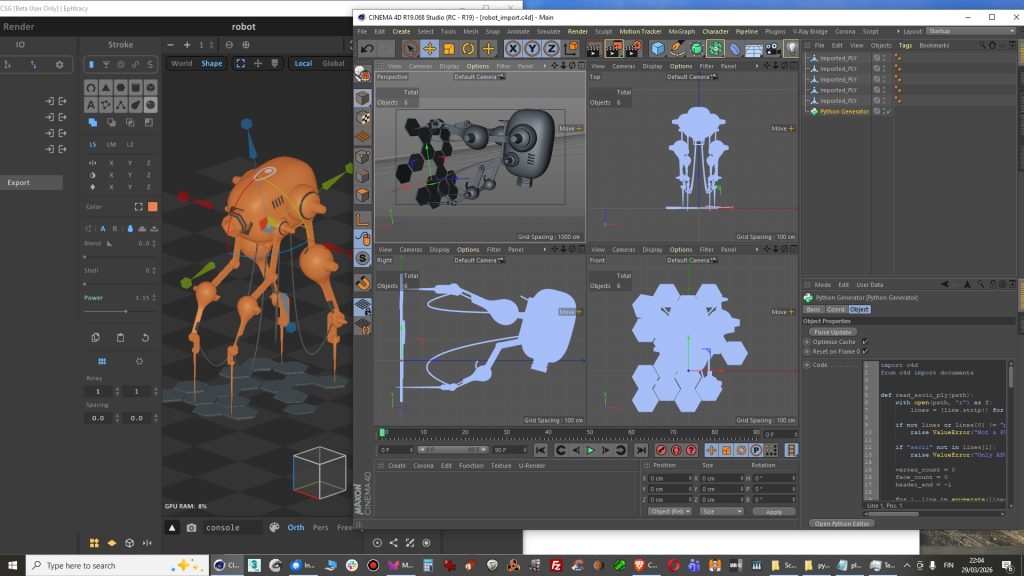
This time file needed to be converted into ascii format inside Meshlab because it was produced by scanner software as binary file. It opens in Meshlab for sure but not with Cinema 4D PLY importer python script.
open up PLY file in notepad ++ and you can verify the script is messed up. Hmm what garbage is this? Actually it is not garbage and not messed up but it is in binary format so it’s not readable in Ascii-format.
2. Open PLY file in Meshlab and Export as a new PLY file without checking Binary encoding. There was a good tip on this blog.
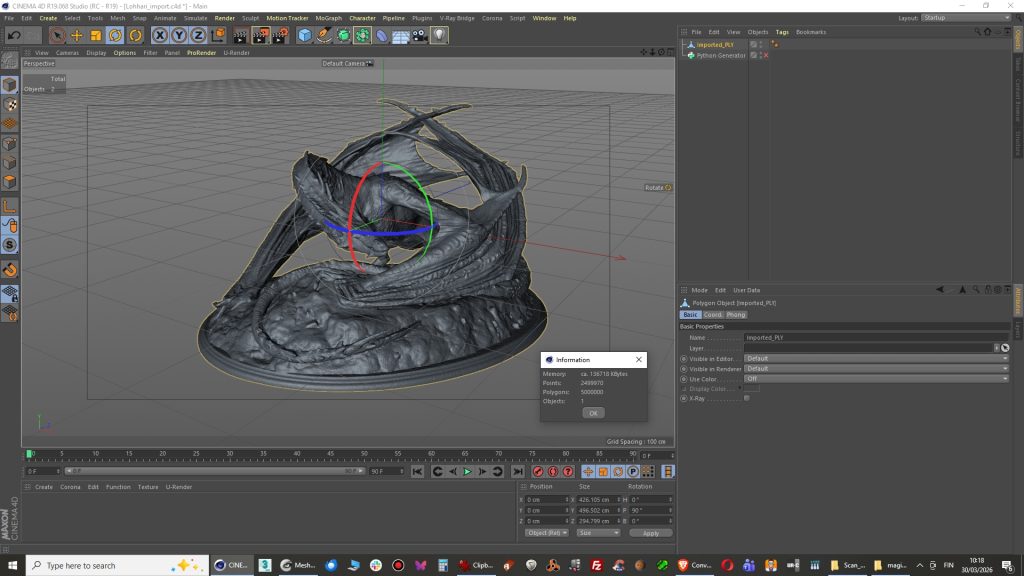
3. Import into Cinema 4D with PLY python script and you are done!. Model appears to have 5000 000 polygons which can be reduced now with polygon reduction tool but I am positive that Meshlab has better tools for that.
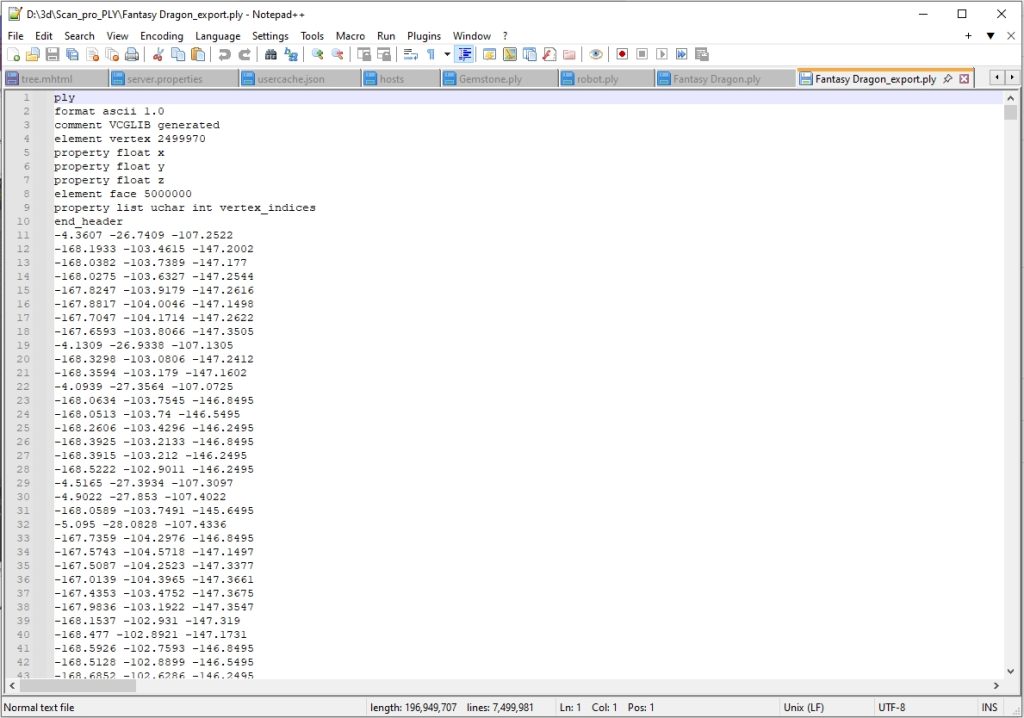
4. If you open the file in Notepad ++ and you can see it is clean now.
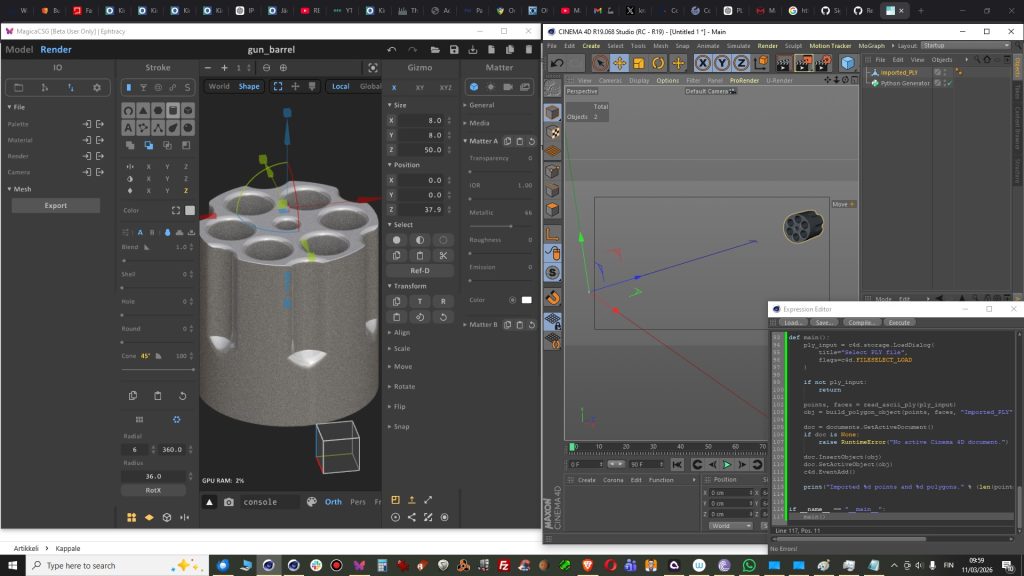
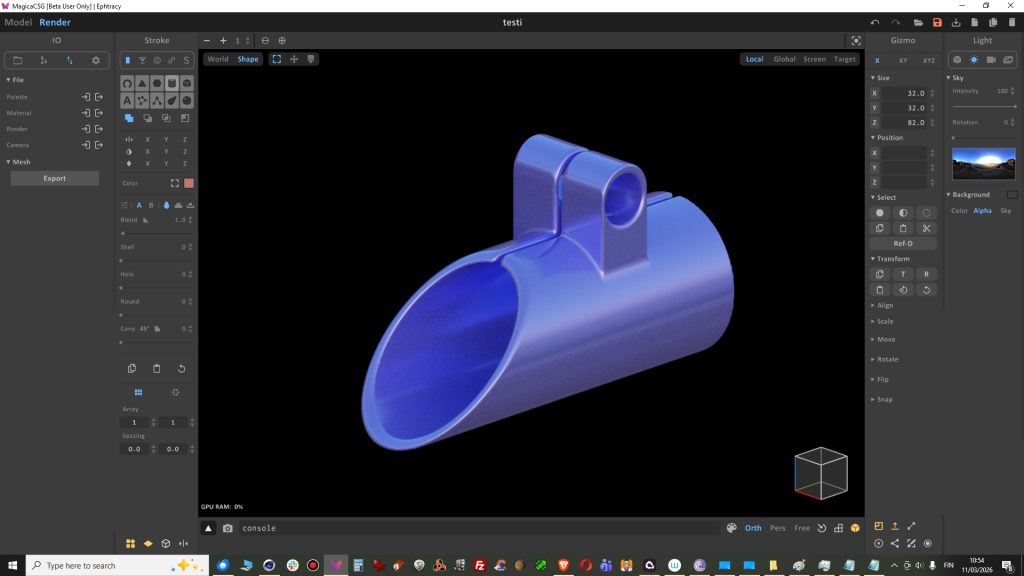
Actually my first released script. I had modeled object in Magica CSG and this came handy when import into Cinema 4D R19. There is no support for PLY in R19. This version is 0.1.
Some notes: If script keeps asking new file or Cinema 4D gets stuck, then after mesh import simply delete Python Generator from your object manager.
File size ”issues”, or just features?.
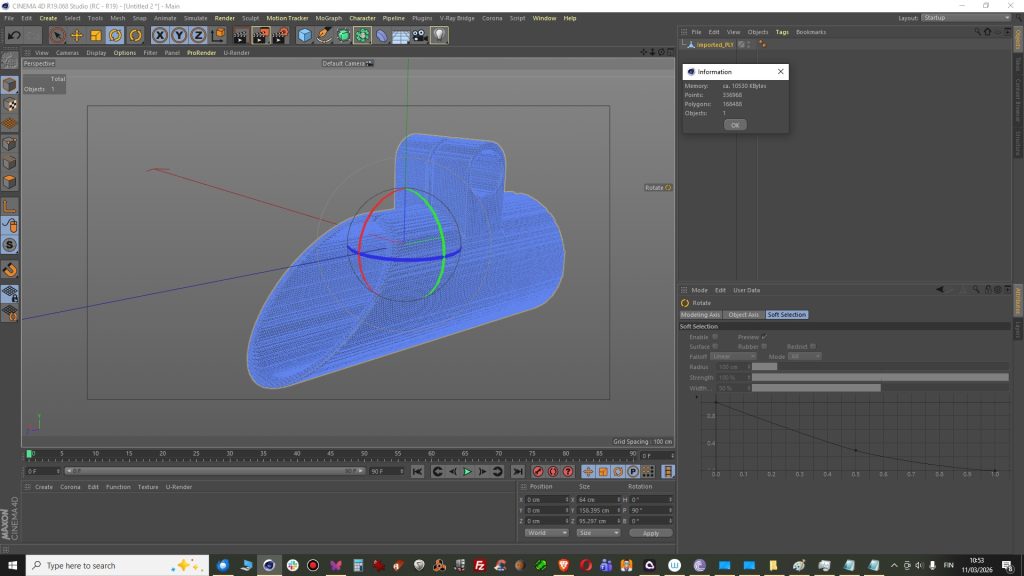
The problem or the feature in PLY file itself is that it is quite heavy because it has very dense polygon mesh. This does not matter that much when you are making models for 3D-Printing. If you make models for game then you might want to use polygon reduction tool or just remodel some very polygon intense parts.
This model below had 168488 polygons that is too heavy for game engine but I guess ok for 3d-printer.